FRIDAY COWORK

Invent your future with Friday CoWork’space

Friday CoWork brings search, research, creation, lead generation, documents, media, and more into one visual workspace — so your work stays connected from the first idea to the final output.

  • Work across multiple tasks
  • Keep every result on one canvas
  • Continue without losing context
THE FRIDAY COWORK WORKSPACE
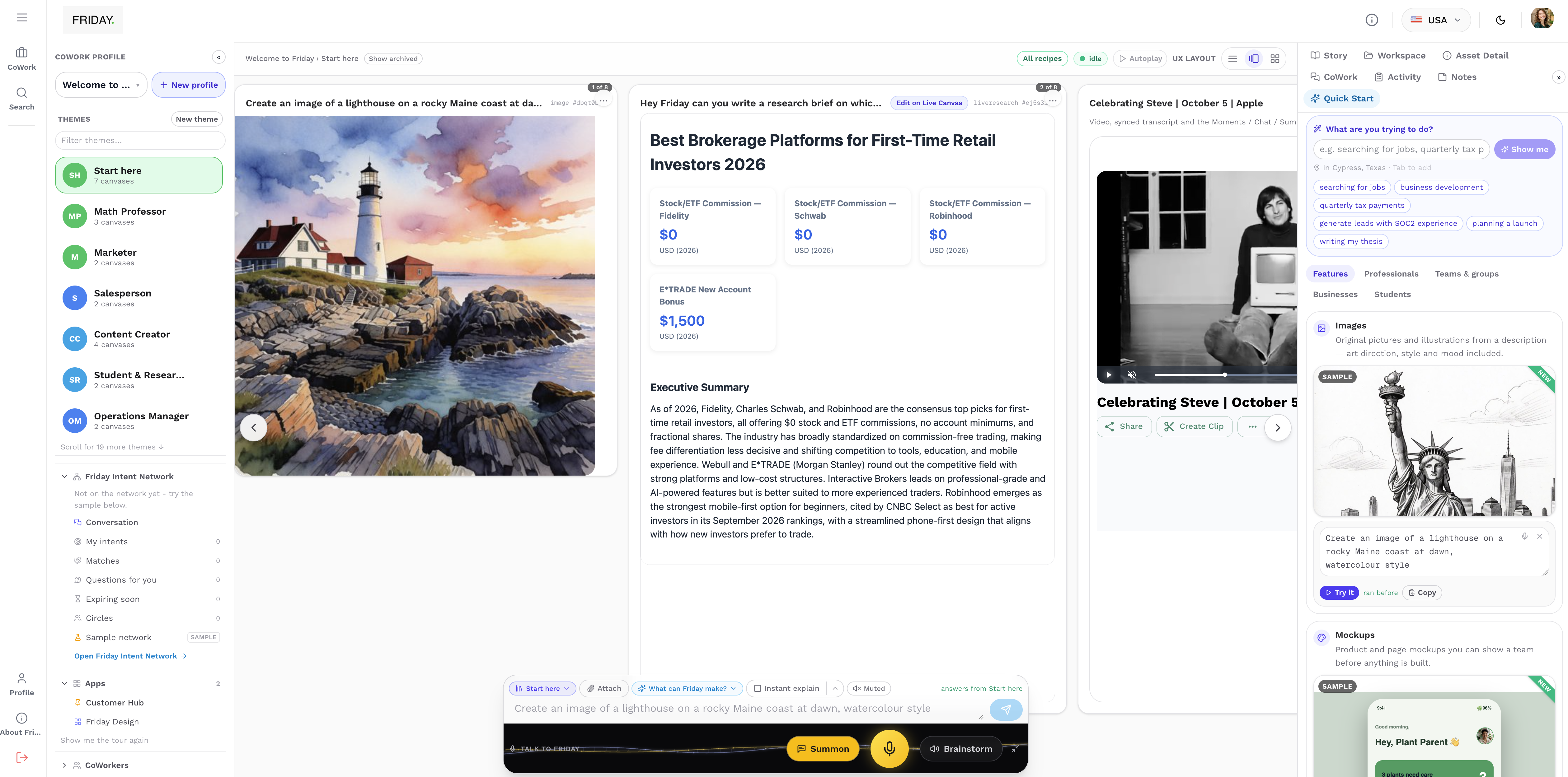
Friday CoWork interface with project organization, multiple outputs on the canvas, context panels, and the Friday bar.
01
Multiple tasks
02
One canvas
03
Quick Start
SEARCH · CREATE · RESEARCH · ORGANIZEDifferent kinds of work. One connected canvas.
INSIDE FRIDAY COWORK

One workspace.
Everything has its place.

CoWork keeps the project structure, working canvas, context, and Friday controls visible around the work.

REAL COWORK WORKSPACE
  1. 01 / Workspace

    Organize the workspace

    Create CoWork profiles and themes, access apps and CoWorkers, and keep connectors and Drive close to the project.

    CoWork ProfileThemesAppsCoWorkersConnectorsDrive
  2. 02 / Canvas

    Do the work visually

    The center canvas is where Web, Research, Images, documents and other outputs can stay together as your workspace grows.

    CanvasAssetsMultiple resultsVisual navigationNodes
  3. 03 / Context

    Stay close to the context

    Story, Asset Detail, CoWork, Activity, Notes and Quick Start stay available beside the work.

    StoryAsset DetailCoWorkActivityNotesQuick Start
  4. 04 / Friday

    Ask Friday from anywhere

    Use the Friday bar to continue working with context, attachments, memory, explanations, voice and brainstorming.

    Context / knowledgeAttachMemoryInstant ExplainSummonVoiceBrainstorm
START WITH CONTEXT

Tell Friday who you are.
Let the workspace take shape.

Start with a Personal, Professional, or Business profile. Add a useful link, your own context, or supporting material, and Friday can help draft the goals and details that matter.

CHOOSE A PROFILE TYPE
The profile is a starting point.

Reusable context—not a limit on where the work can go.

PROFESSIONAL PROFILE

Build the context Friday should work from.

Draft · Review first
PROFILE NAMEIndependent Product Designer
USEFUL LINKhttps://portfolio.example

Friday can read the page to understand the profile.

Profile Website Documents Existing details

Friday combines the name, link, documents, and details already entered.

FRIDAY DRAFTSuggested profile
ABOUT THIS PROFILE

Growing a product design practice and looking for better client opportunities.

GOALS
  • Find relevant consulting opportunities
  • Build a stronger portfolio
  • Prepare client proposals
NEXTBook qualified client conversations
Friday suggests. You review and edit before applying.
  1. 01Choose your profile
  2. 02Add context
  3. 03Enhance with Friday
  4. 04Review & edit
  5. 05Start working

Once Friday understands the context, your workspace can start from something useful — not a blank page.

LET FRIDAY HELP

Give Friday a little context.
Let it fill in the rest.

Add a name, useful link, documents, or a few details. Friday can use that context to suggest the rest of your profile — then you choose what to keep.

  1. 01Add context

    Start with a profile name, useful link, documents, or anything you already know.

  2. 02Enhance with Friday

    Friday reads the context and drafts useful profile details and goals.

  3. 03Review before applying

    Choose Apply to keep the suggestions, or Dismiss to leave the profile unchanged.

Name Website Documents
Enhance Goals with Friday
Apply Dismiss

Friday suggests. You decide what gets applied.

ENHANCE GOALS WITH FRIDAY
REAL COWORK SCREENSHOTEnhance Goals result will be added here.
Suggestions appear for review before anything changes.
01Friday drafts02Review suggestions03Apply or Dismiss
START WITH YOUR KIND OF WORK

A workspace that
already understands the context.

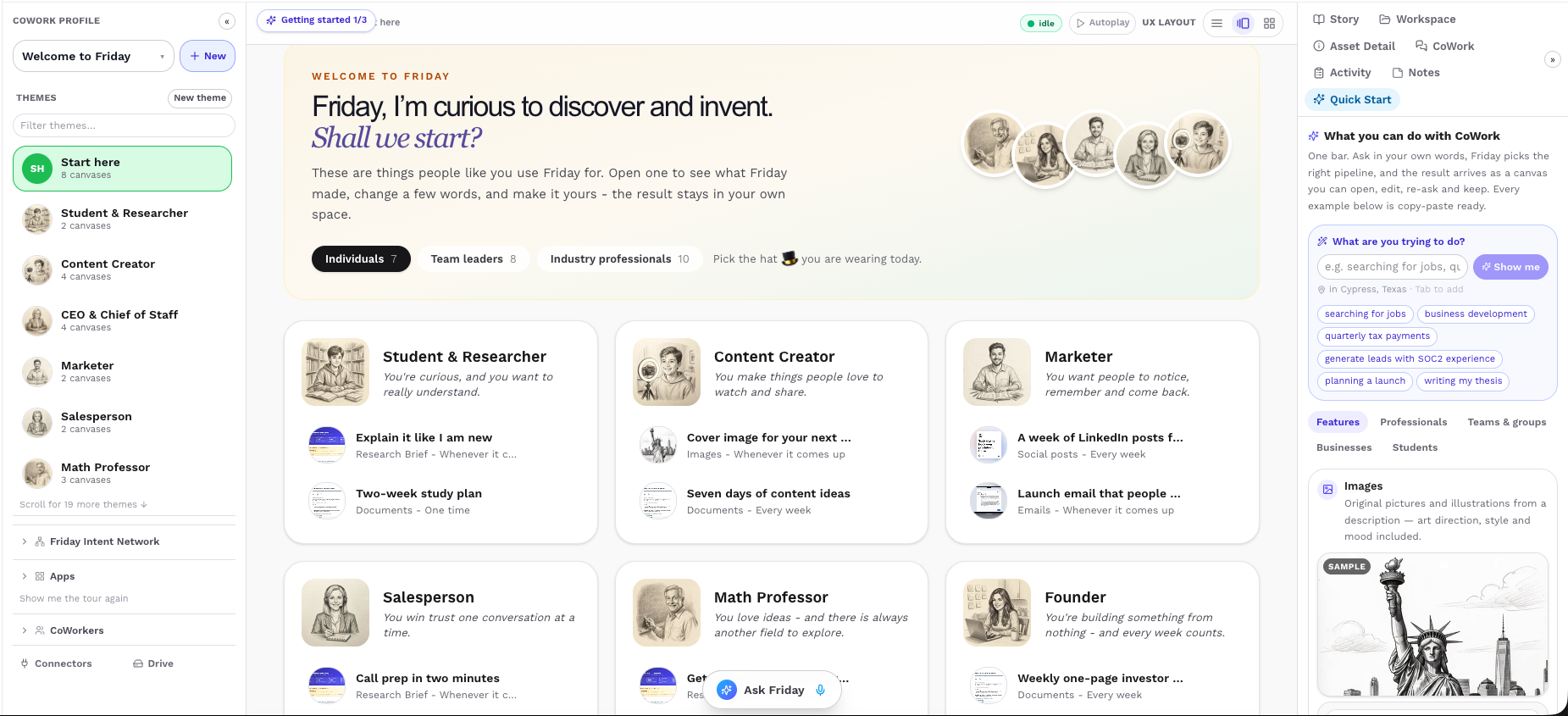
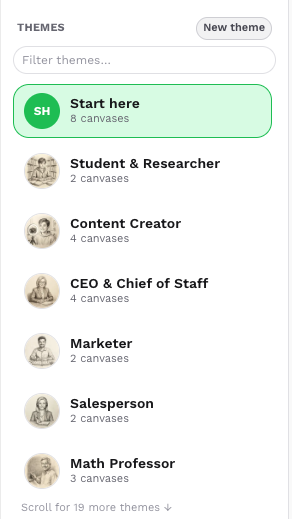
Choose a Theme based on the kind of work you’re doing. Friday gives you relevant starting points, Recipes, and canvases so you don’t have to begin from zero.

  • 01Start here
  • 02Student & Researcher
  • 03Content Creator
  • 04CEO & Chief of Staff
  • 05Marketer
  • 06Salesperson
  • 07Math Professor

More Themes for Software Engineers, Product Managers, Founders, Finance, Sales, Marketing, Customer Success, People, Operations, Consultants, and others.

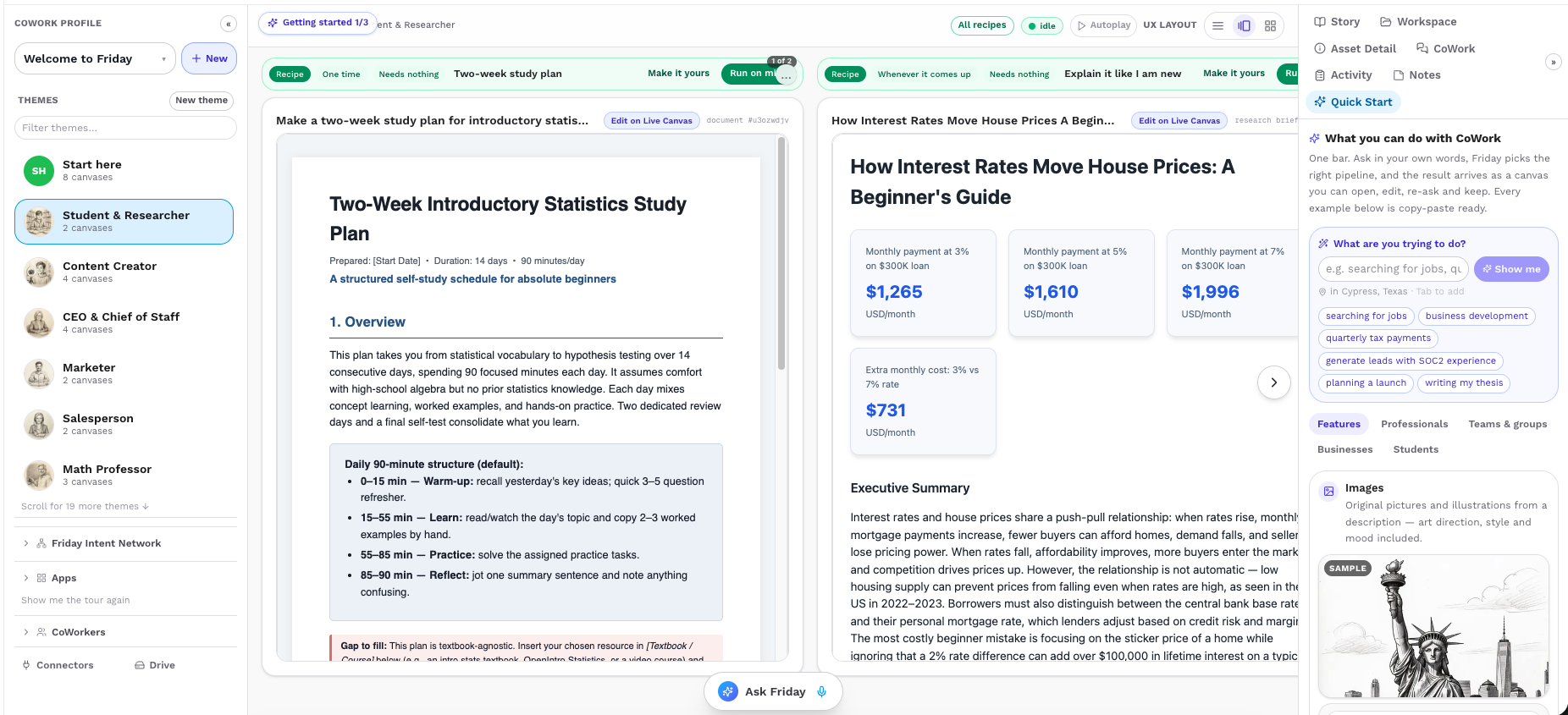
Friday CoWork workspace showing the real Themes sidebar with role-based starting points.
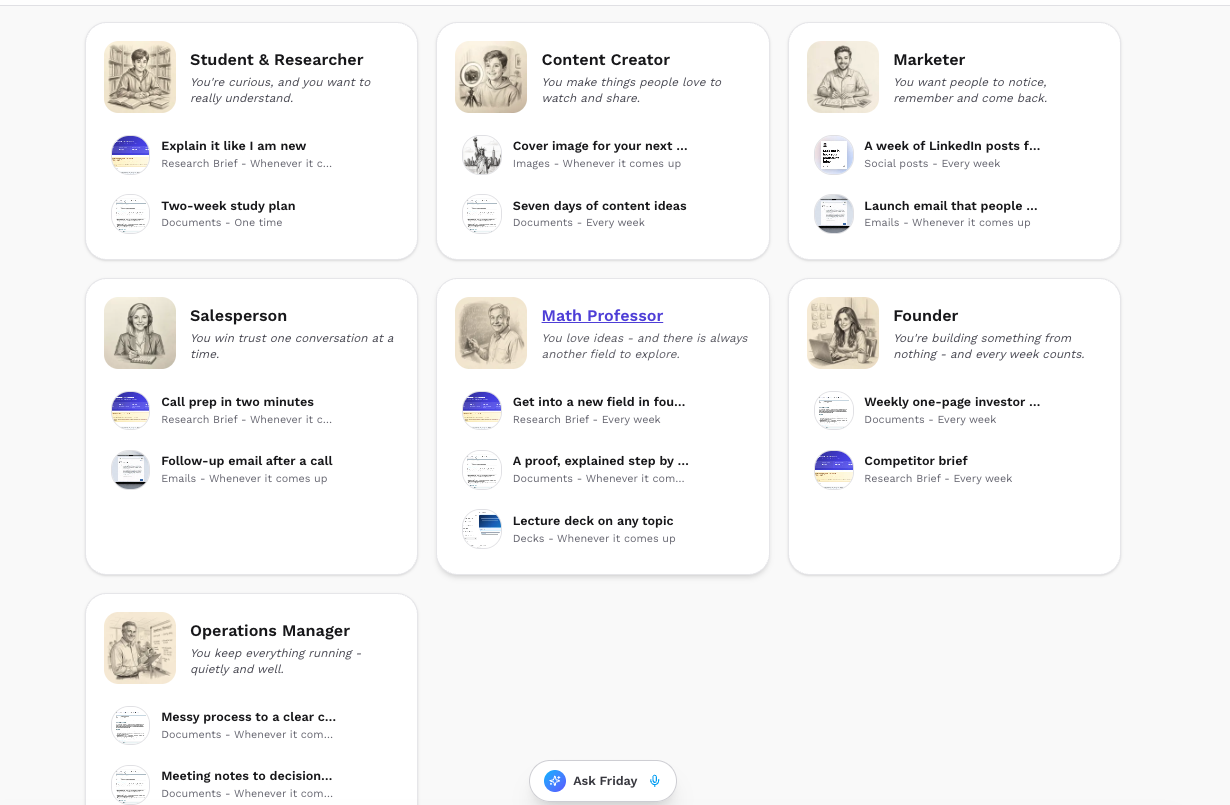
EXPLORE RECIPESFriday CoWork All Recipes view showing ready-made workflows available from a Theme.
A useful starting context — never a limit on where the work can go.
IndividualsTeam leadersIndustry professionals
Friday CoWork All Recipes experience showing ready-made workflows grouped by role and type of work.
Ready-made starting points for students, creators, marketers, salespeople, founders, and more.
START WITHOUT A BLANK PAGE

Find a starting point.
Then make it yours.

All Recipes brings together ready-made workflows for different kinds of work. Browse by role, open an example, and turn it into something useful for your own workspace.

What is a Recipe?A ready-made starting workflow for something you want to accomplish.

  1. 01
    Browse

    Explore Recipes grouped around roles and goals.

  2. 02
    Choose

    Open a starting workflow that fits the work.

  3. 03
    Make it yours

    Adapt it, then run it on your canvas.

FROM A STARTING POINT TO YOUR CANVAS

See something useful.
Run it on yours.

Run on mine takes the Recipe and runs it directly in your own CoWork canvas. The result becomes part of your workspace, ready for whatever you want to do next.

  1. DISCOVER
    01Choose a Theme or open All Recipes
    02Pick a Recipe
  2. RUN
    03Make it yours
    04Run on mine
  3. KEEP BUILDING
    05Friday runs the Recipe on your canvas
    06Keep editing, asking, creating, and building
Friday CoWork showing Make it yours and Run on mine Recipes alongside the resulting work on the user's canvas.
STARTING POINTFriday CoWork All Recipes view used to choose a ready-made starting workflow.
Choose a starting point. Make it yours. Run it on your canvas.
A WORKSPACE WITH MANY POSSIBILITIES

What will you
work on next?

Start with the goal. Bring the right kind of work onto your canvas.

01

Web

Open real pages, explore live information, and bring the most useful findings back into your CoWork canvas so you can continue working from them.
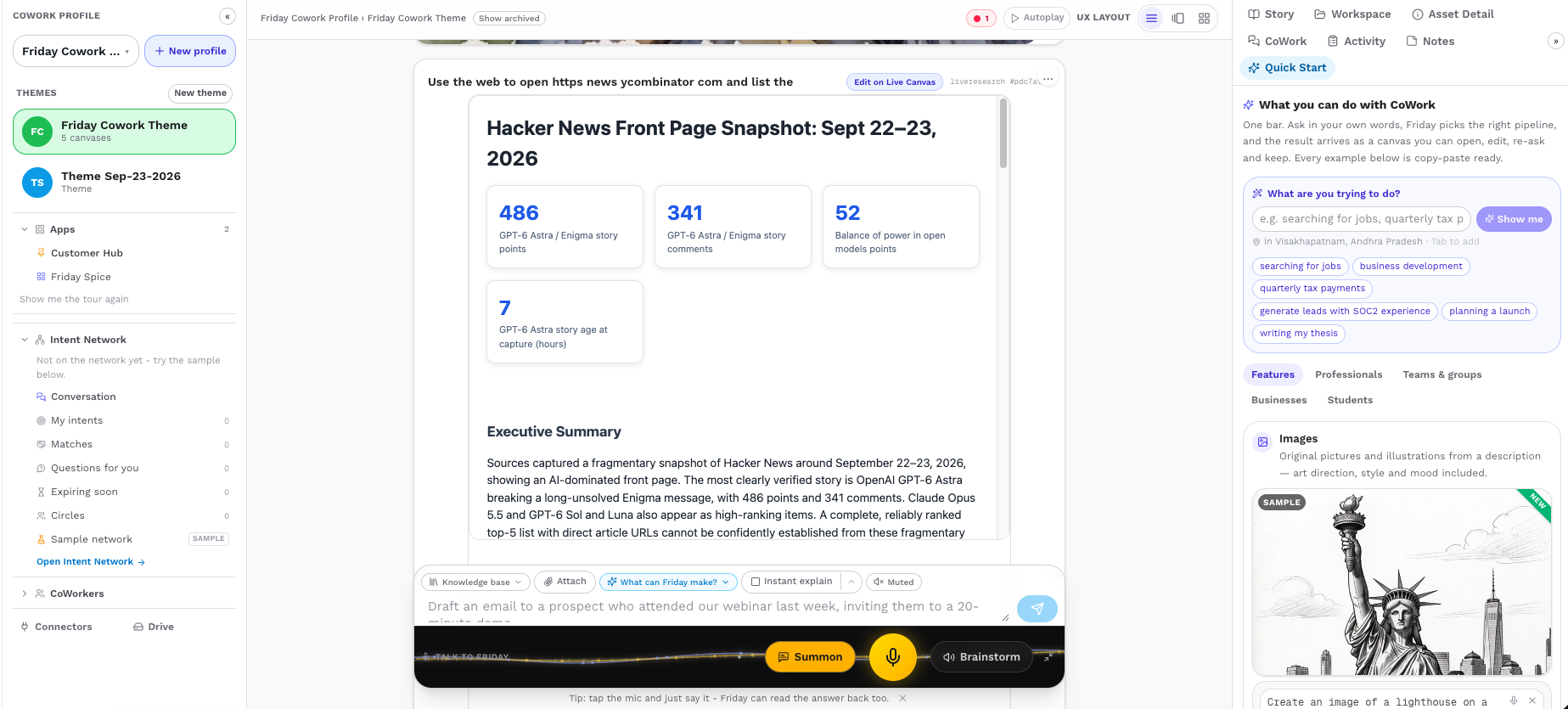
Friday CoWork Web capability shown inside the workspace.
02

Research

Go deeper across multiple sources, compare information, and return structured research that stays connected to the rest of your workspace.
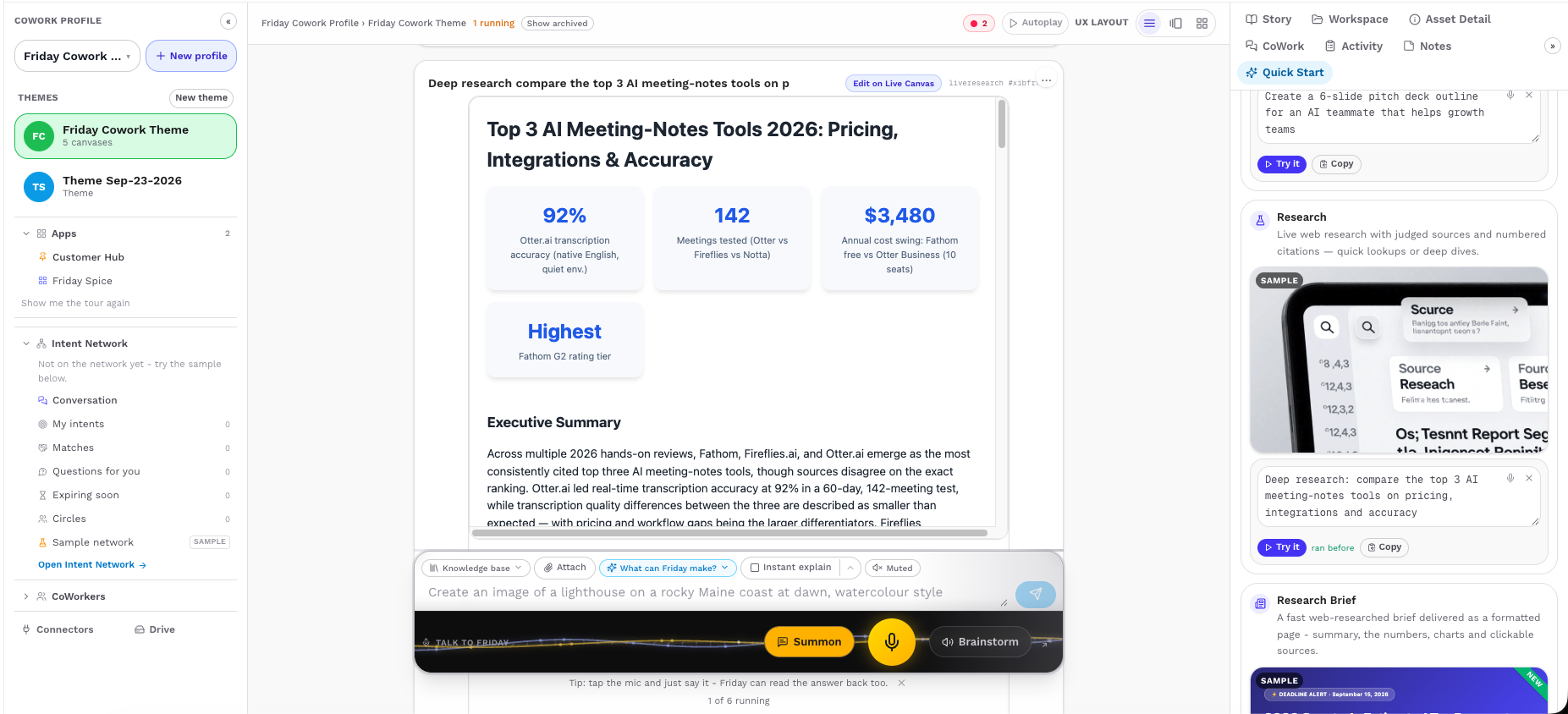
Friday CoWork Research capability shown inside the workspace.
03

Research Brief

Turn research into a polished brief with key takeaways, summaries, important numbers, charts, and sources that are easier to review and share.
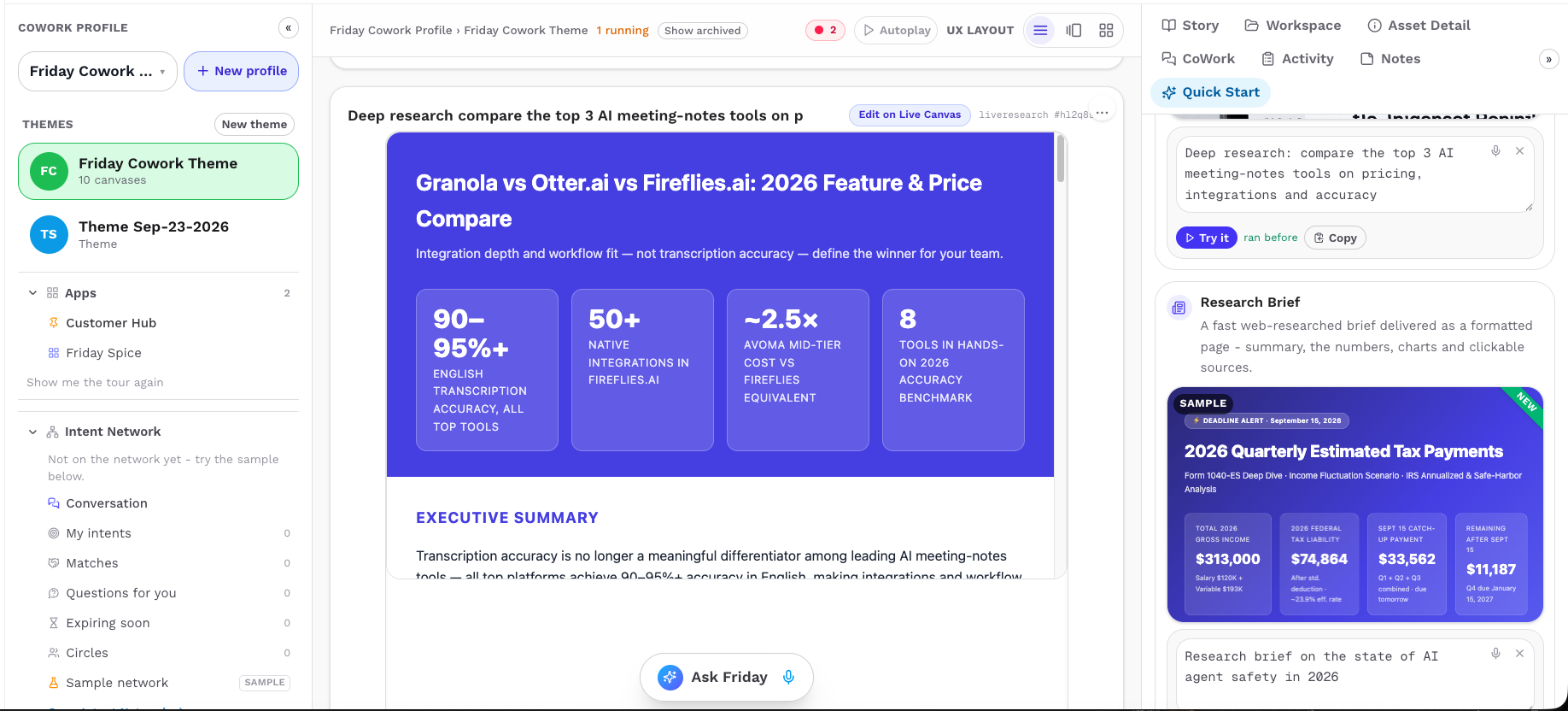
Friday CoWork Research Brief capability shown inside the workspace.
04

Images

Create original images, illustrations, and visual concepts directly from a description, then keep them alongside the rest of your project work.
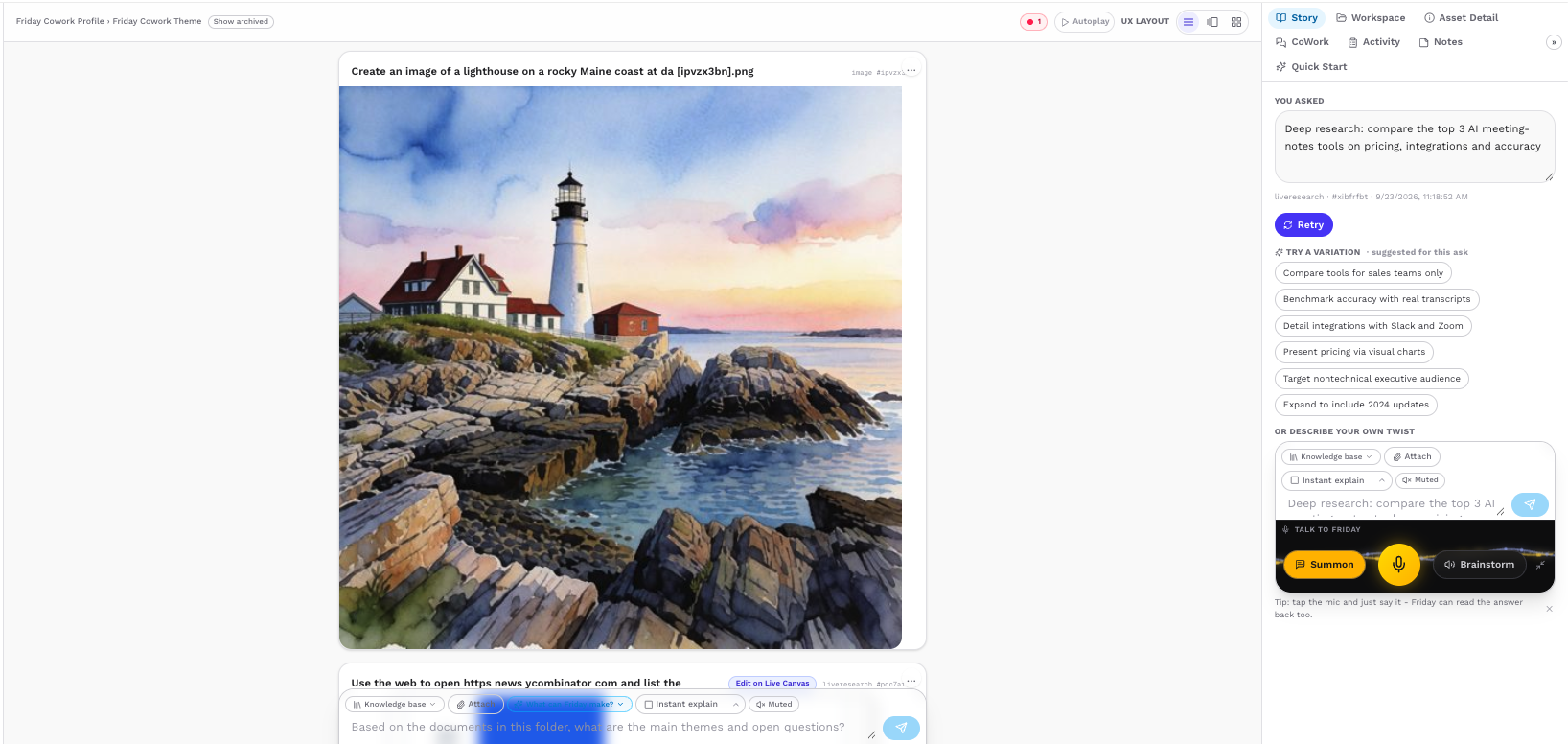
Friday CoWork Images capability shown inside the workspace.
05

Mockups

Turn an early idea into a visual product, page, or interface mockup so you can explore the direction before anything is fully built.
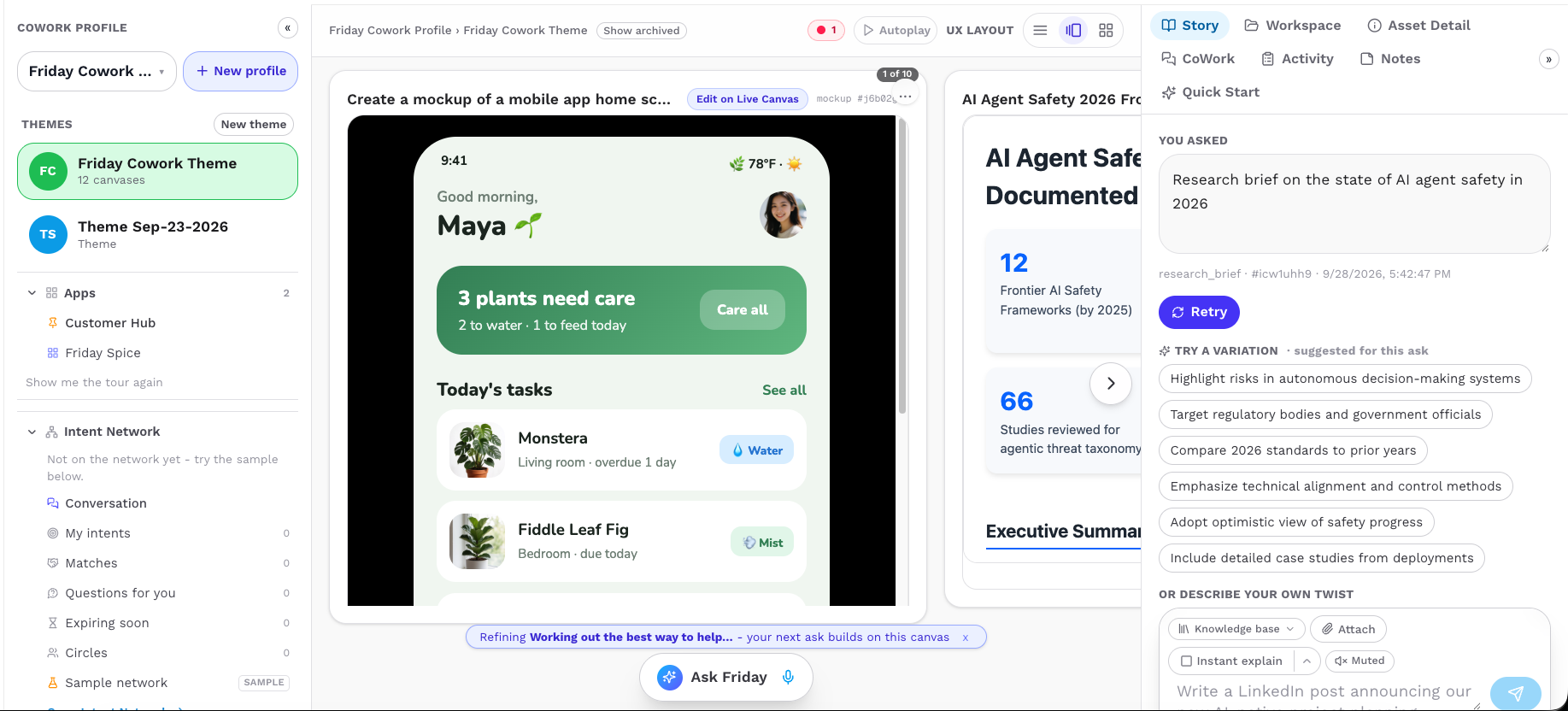
Friday CoWork Mockups capability shown inside the workspace.
06

Documents

Create structured briefs, memos, checklists, summaries, plans, and other written outputs while keeping them connected to the surrounding work.
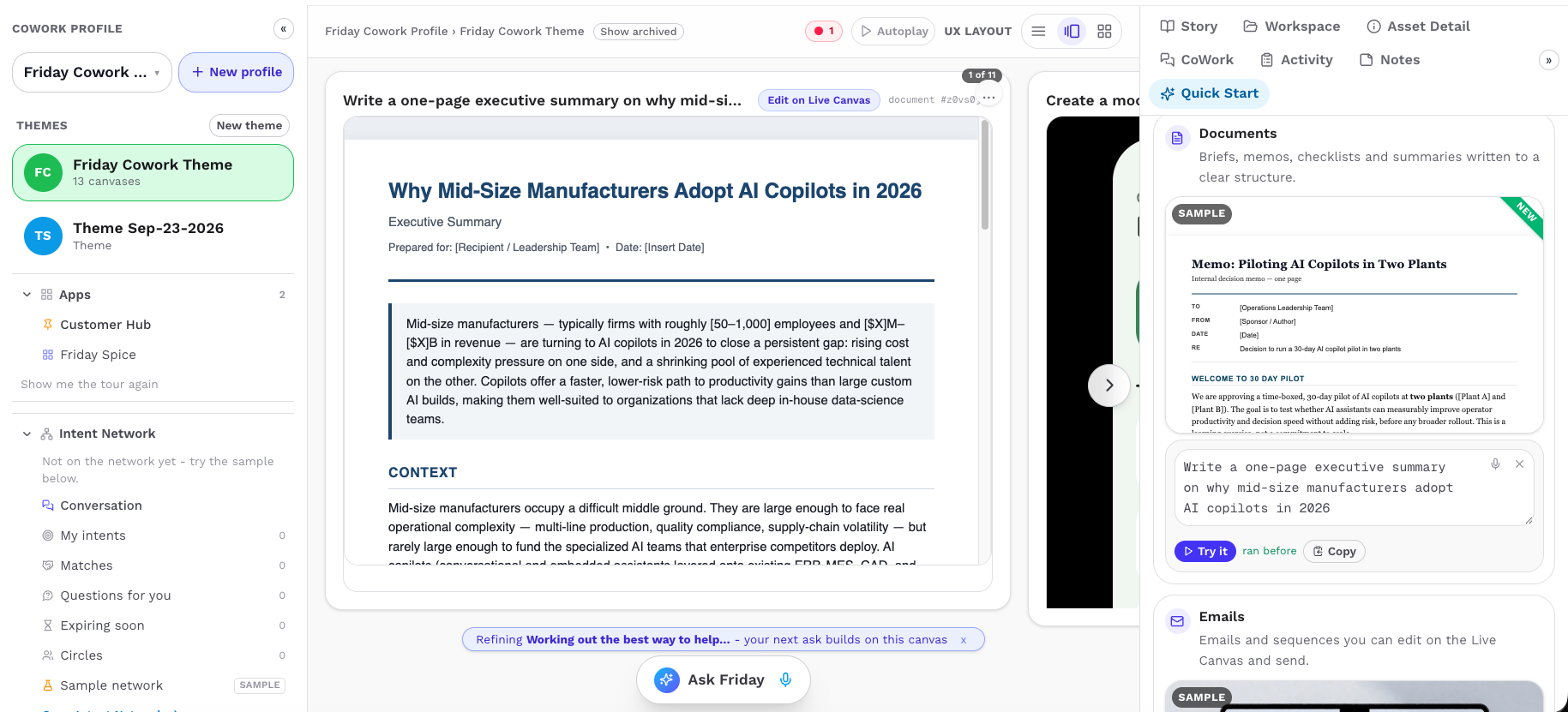
Friday CoWork Documents capability shown inside the workspace.
07

Decks

Turn ideas, research, or project material into a clear presentation structure with organized sections that are easier to refine and present.
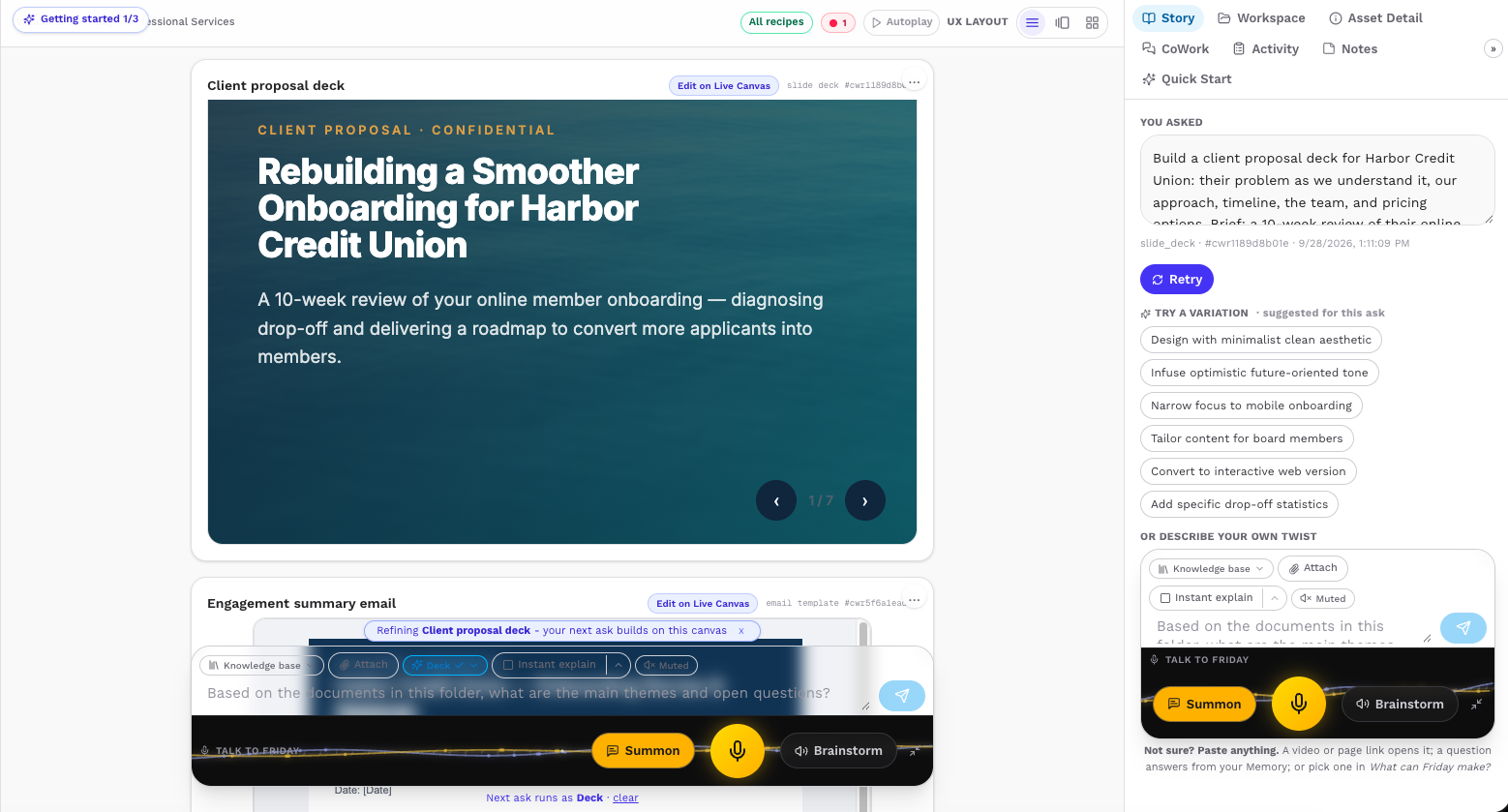
Friday CoWork Decks capability shown inside the workspace.
08

Social Posts

Create platform-ready social content with hooks, messaging, and supporting ideas while keeping the post connected to the larger project context.
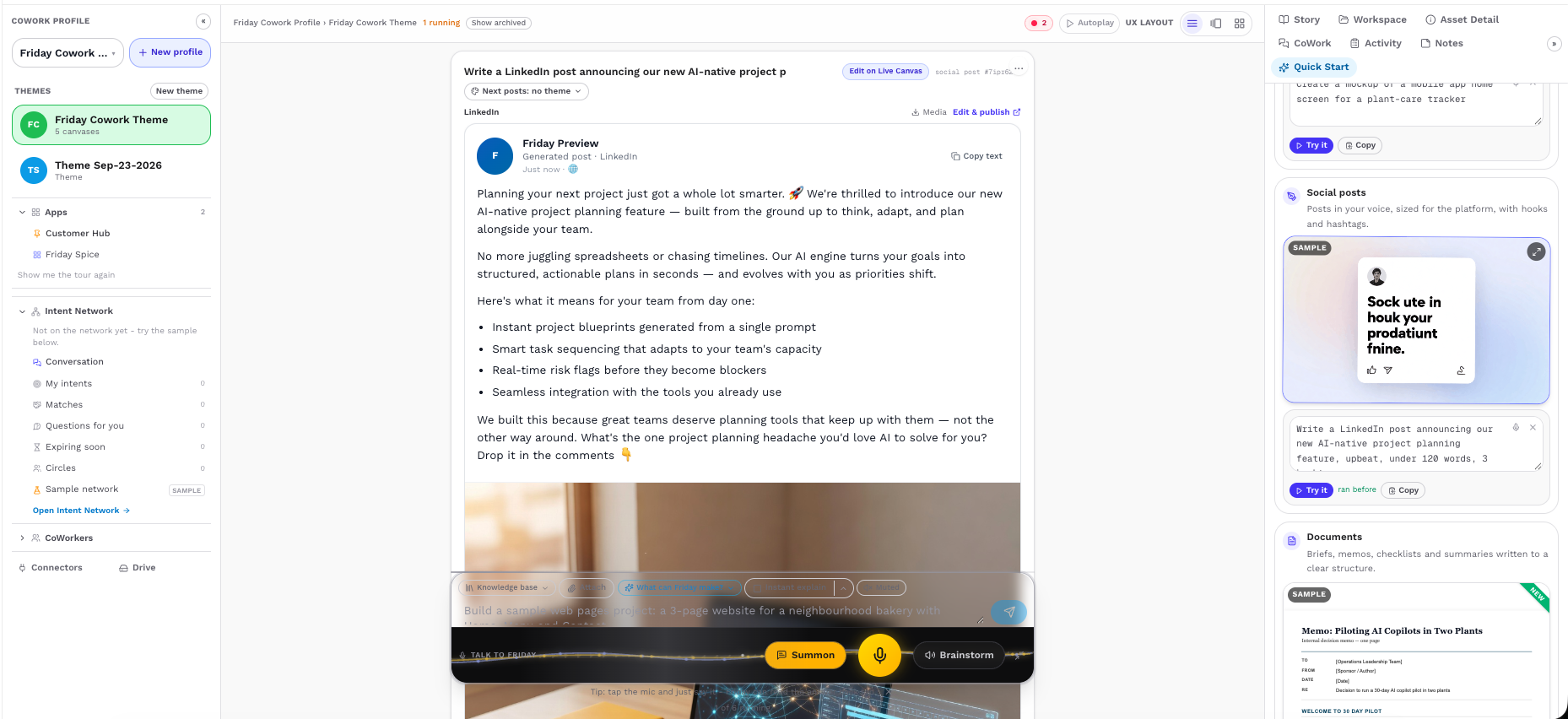
Friday CoWork Social Posts capability shown inside the workspace.
09

Media

Bring video and other media into the workspace so you can review it, discuss it, reference it, and continue building work around it.
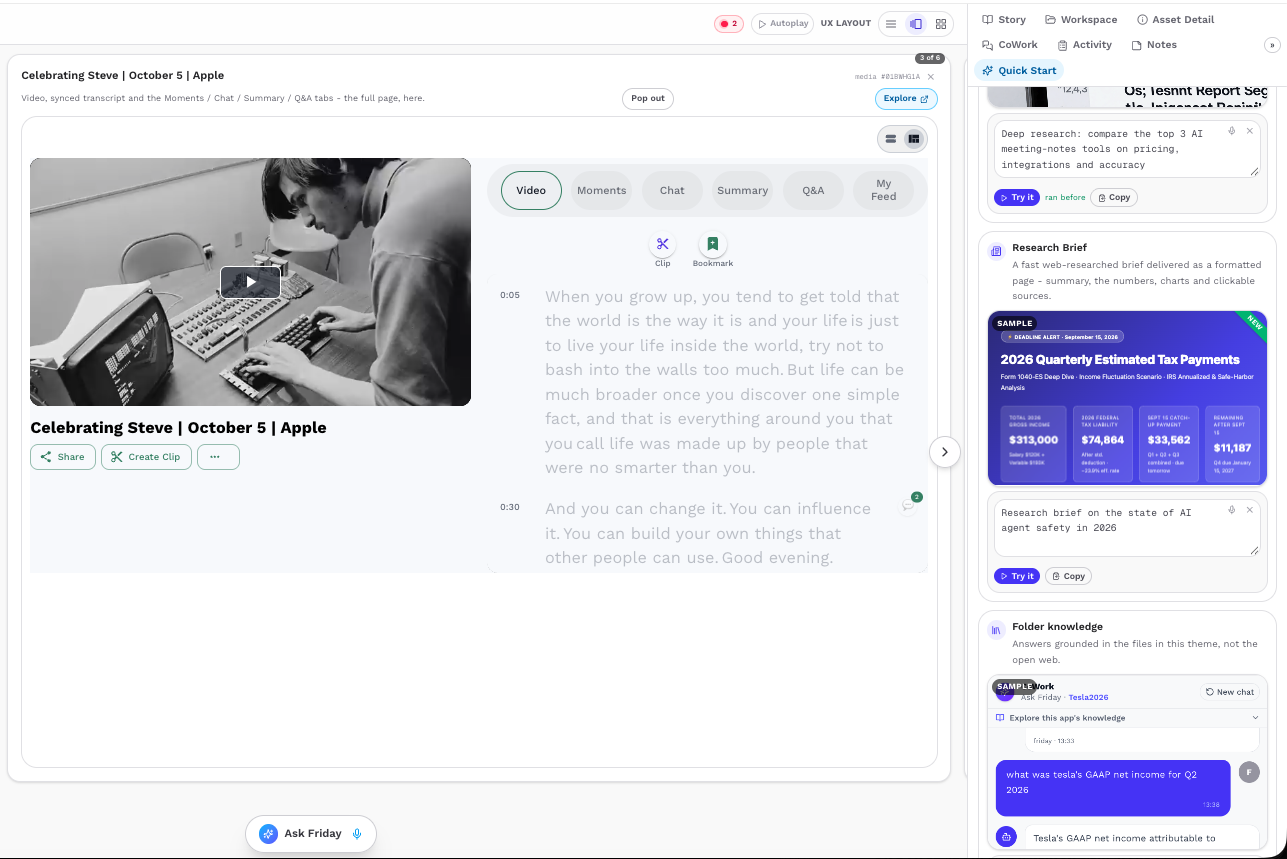
Friday CoWork Media capability shown inside the workspace.
10

Leads

Find people, companies, or opportunities that match your criteria, review why they fit, and continue working from those results inside CoWork.
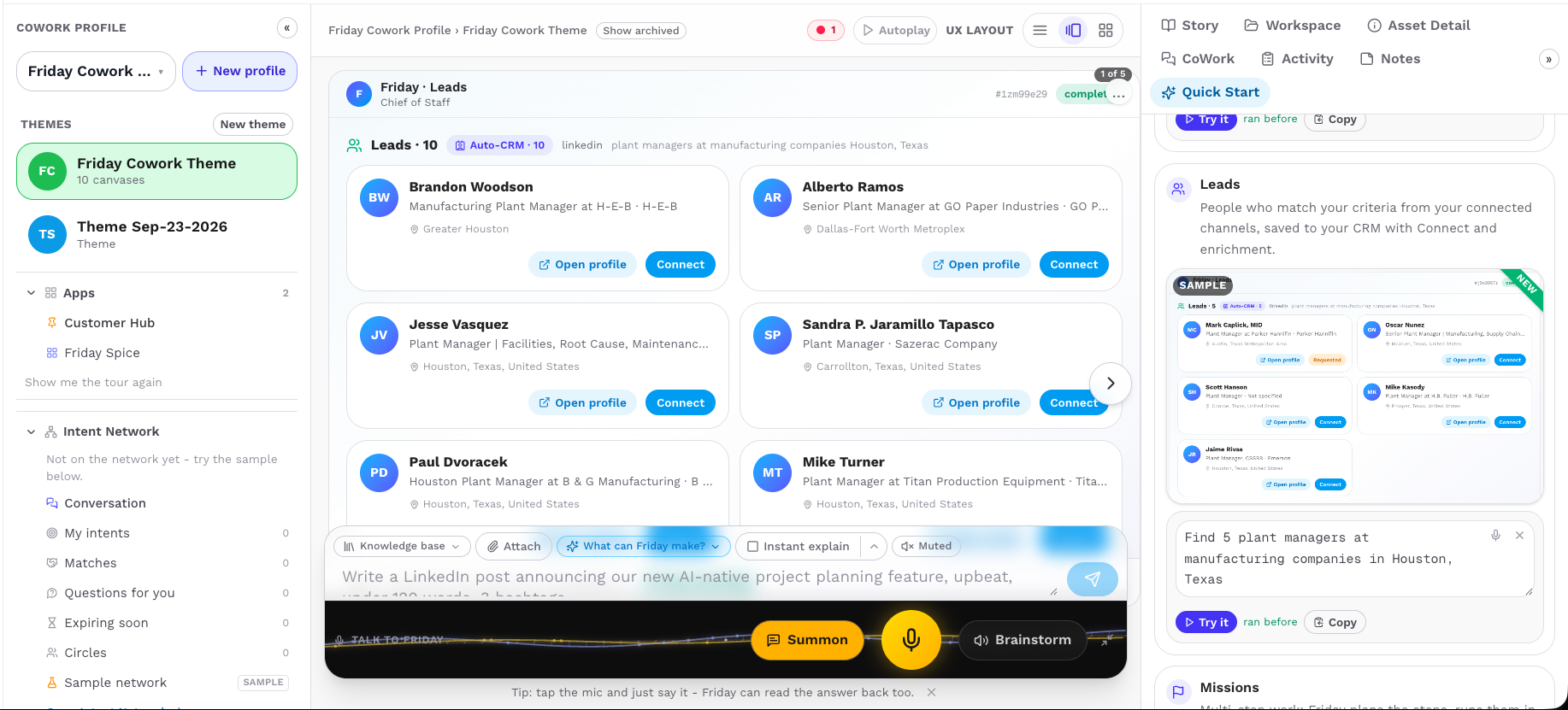
Friday CoWork Leads capability shown inside the workspace.
Friday CoWork Web capability shown inside the workspace.
01 / 12Web
YOUR WORK HAS ROOM TO GROW

Move through your work.
Not between apps.

CoWork gives the workspace room to grow. Move across different outputs, go deeper through longer work, or change the layout when you want another perspective.

Move across related tasks and outputs placed side by side.

HORIZONTAL CANVAS VIEW
CANVAS WITHIN A CANVAS

Room to go deeper.

Open deeper work without cluttering the main workspace.

NEW WORK, CONNECTED

Let the project grow.

Add nodes as new pieces of work become part of the project.

KEEP WORK MOVING

Start another task.
The first one stays.

Start Web, Research, Image Generation or another task without losing the work already on your canvas.
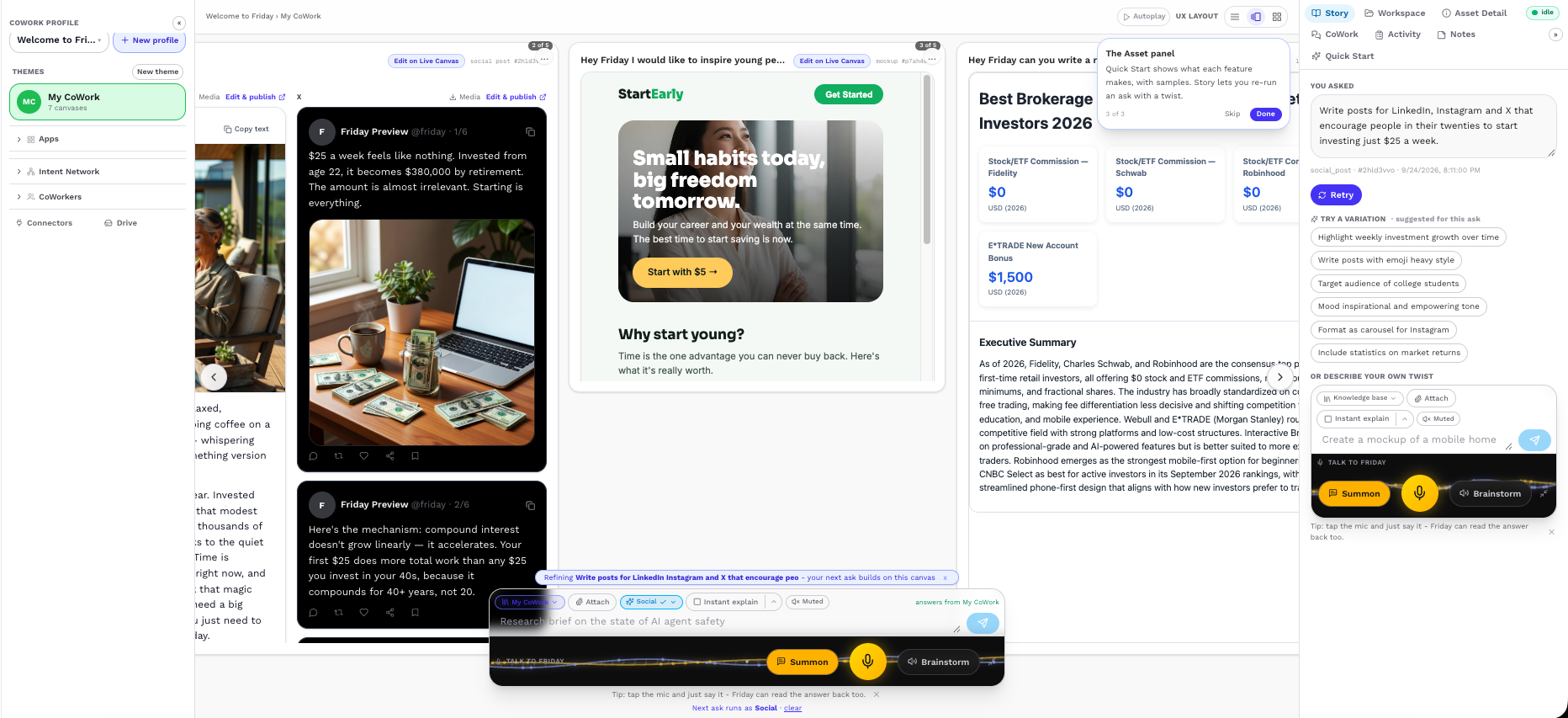
  1. 01Start with Web
  2. 02Create something else
  3. 03Keep both results
  4. 04Continue building
MULTIPLE OUTPUTS, ONE CANVAS
Friday CoWork interface showing Web and Research outputs side by side with other results retained on the canvas.
Different kinds of work. All still here.
START WITHOUT A BLANK PAGE

Tell Friday
what you want.
Quick Start gets
you moving.

Start with your goal or choose from ready-made examples. Friday helps you move into the right workflow.
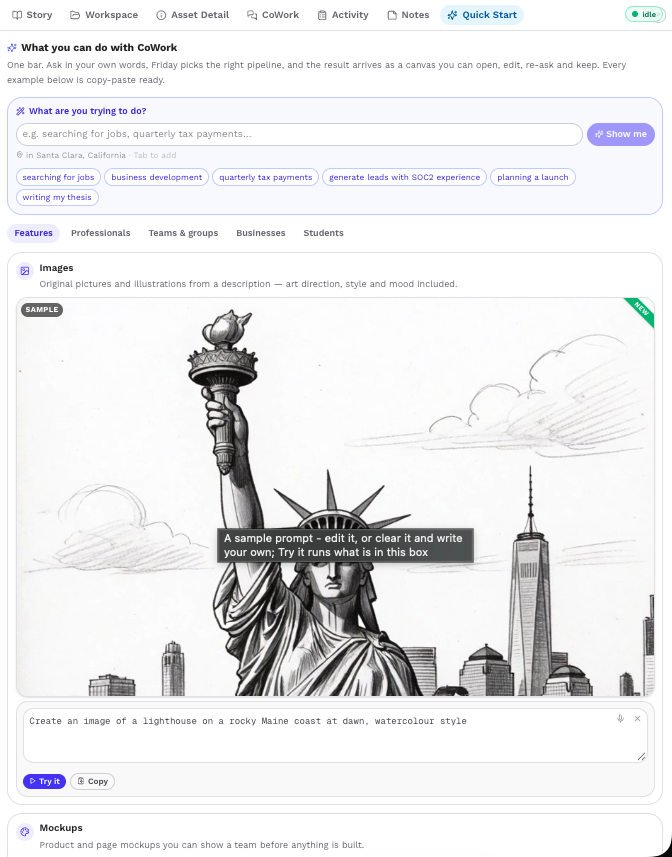
A goal is all you need
to get started.
QUICK START
Friday CoWork Quick Start panel with a goal prompt, suggested examples, and workflow categories beside the canvas.
Your next step, right beside the work.
SEE COWORK IN ACTION

Watch different kinds of work
come together on one canvas.

Start with Web, generate an image, add Research, and keep every result together as your workspace grows.
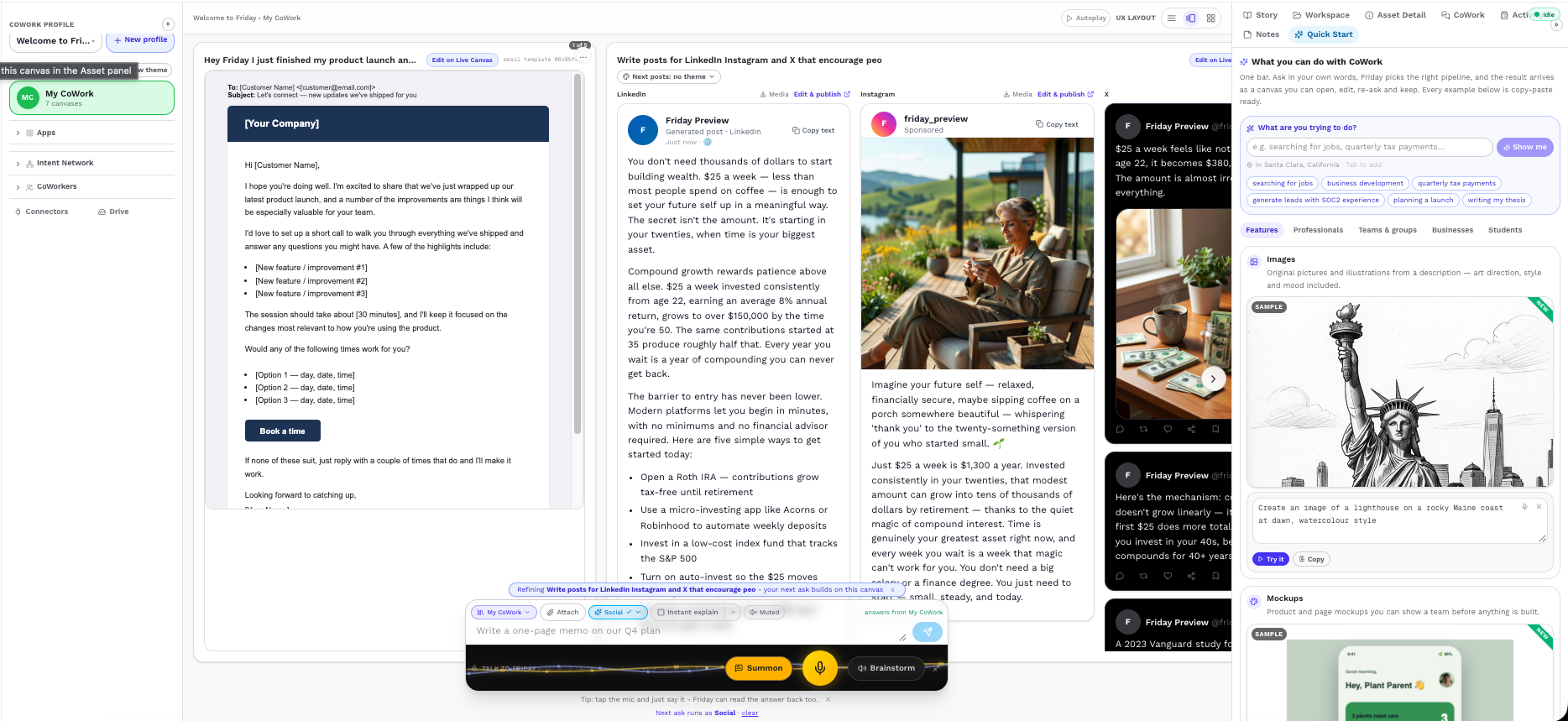
Web → Image → Research → Canvas
COWORK PRODUCT DEMO

Web → Image → Research → Canvas

Different workflows. A workspace that keeps growing.

QUICK START

Start from an example and move directly into work.

Friday CoWork Quick Start product demo showing an example starting a task and producing a canvas result.

MULTITASKING

Run different tasks while results stay on your canvas.
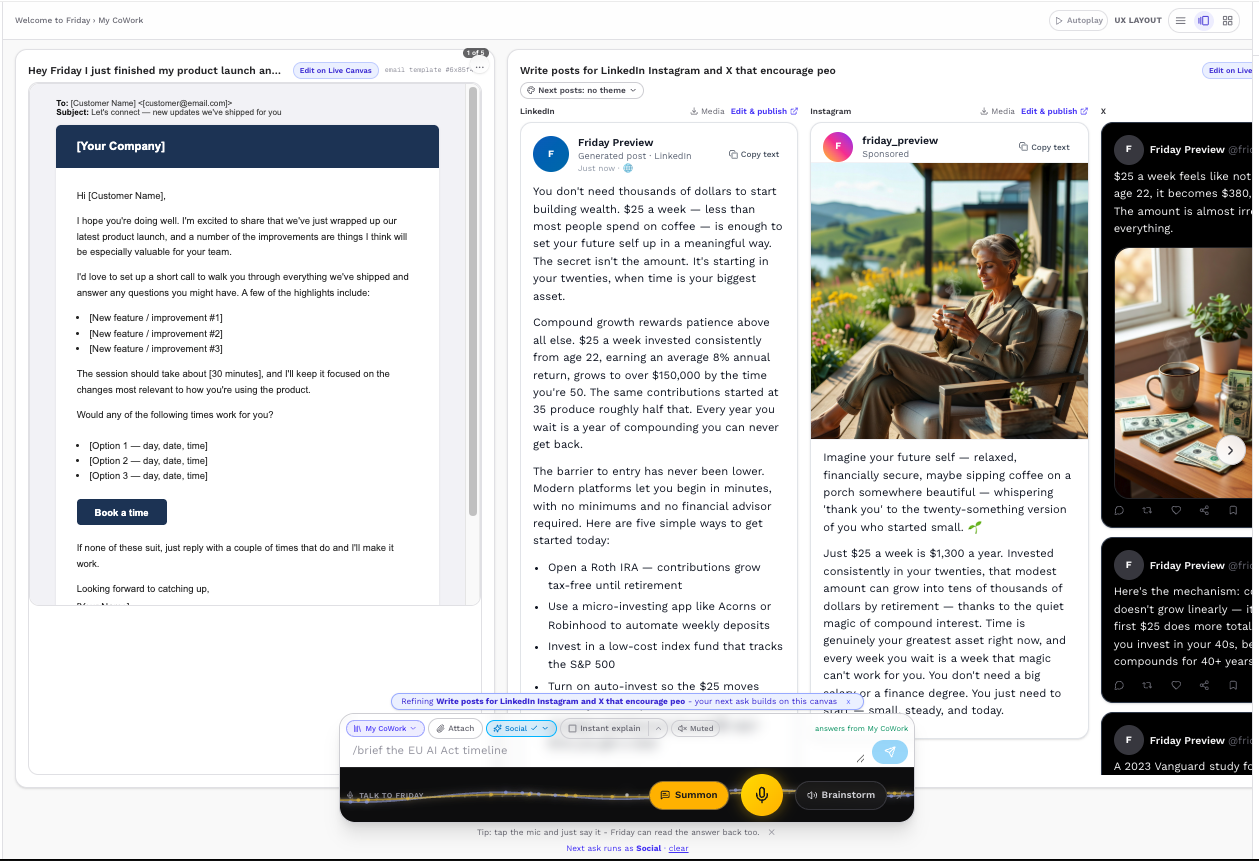
Friday CoWork product demo showing multiple tasks with previous results remaining on the canvas.
COWORK FOR DIFFERENT KINDS OF WORK

Whatever the goal,
build around it.

01

Professionals

Research a market, create a brief, and prepare a presentation.

01Market research02Strategy brief03Presentation
02

Businesses

Find leads, research accounts, create campaign assets, and build outreach.

01Lead list02Account research03Outreach
03

Teams

Organize a launch into research, visuals, content, and planning.

01Research02Creative direction03Launch plan
04

Students

Research a topic, organize notes, structure a thesis, and create a presentation.

01Source notes02Thesis outline03Deck
05

Creators

Generate visuals, work with media, create posts, and organize campaign ideas.

01Visual concepts02Media03Social posts
FRIDAY BY INSPIREDONE

Start with one task.
Keep building from there.

Search, create, research, organize, and continue your work from one connected visual workspace.

Open Friday CoWork One workspace. Multiple ways to work.